On-device OCR, AI upscaling and scrolling capture

Screenshot tool and screen recorder for Windows and macOS Capture.Annotate.Done.

ShotShoot turns a screenshot into a clear explanation in seconds. One shortcut, a precise selection, arrows and blur right on the screen — and the image is already in your clipboard.

Print ScreenWindows⌘Shift0macOSPress anywhere
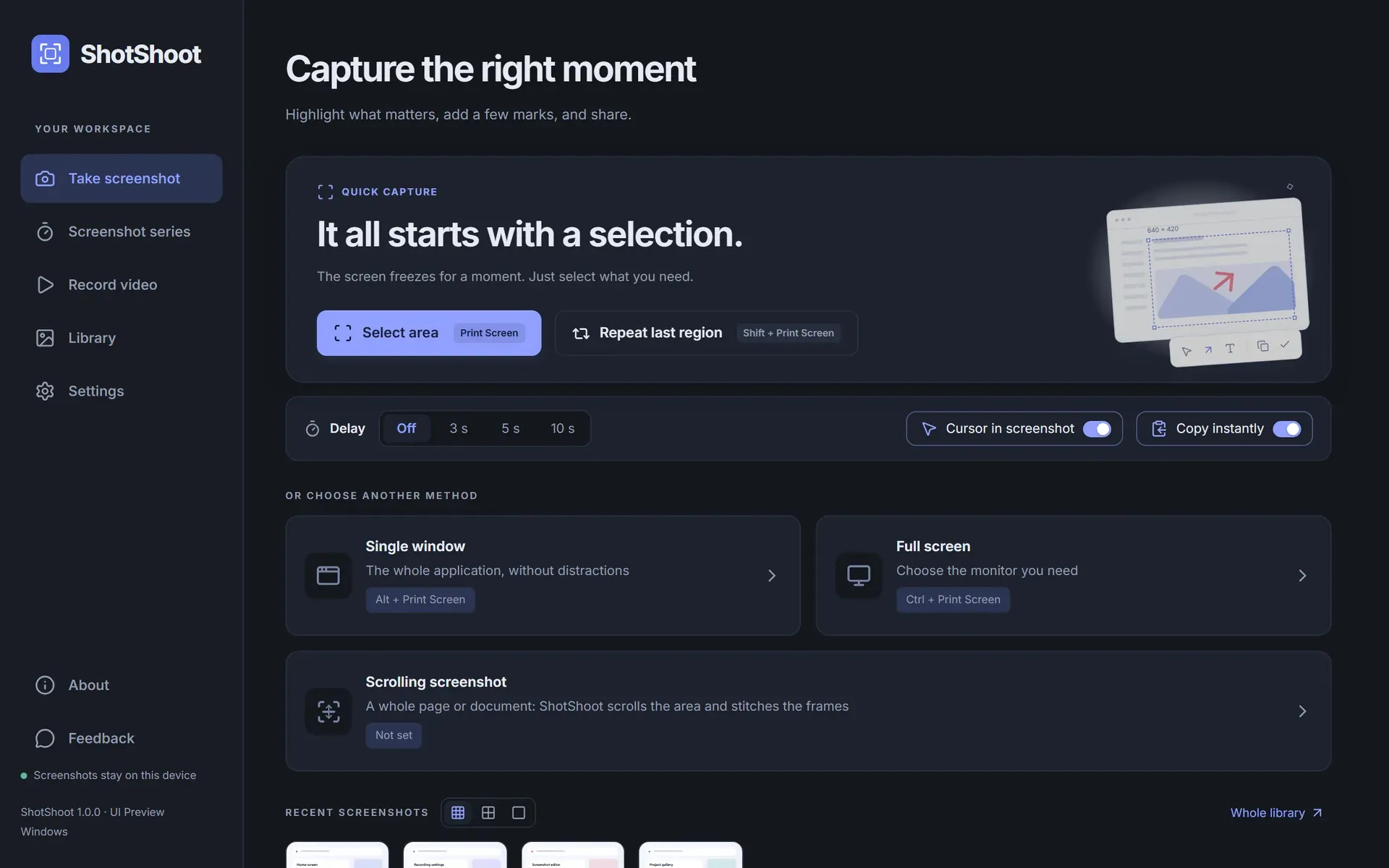
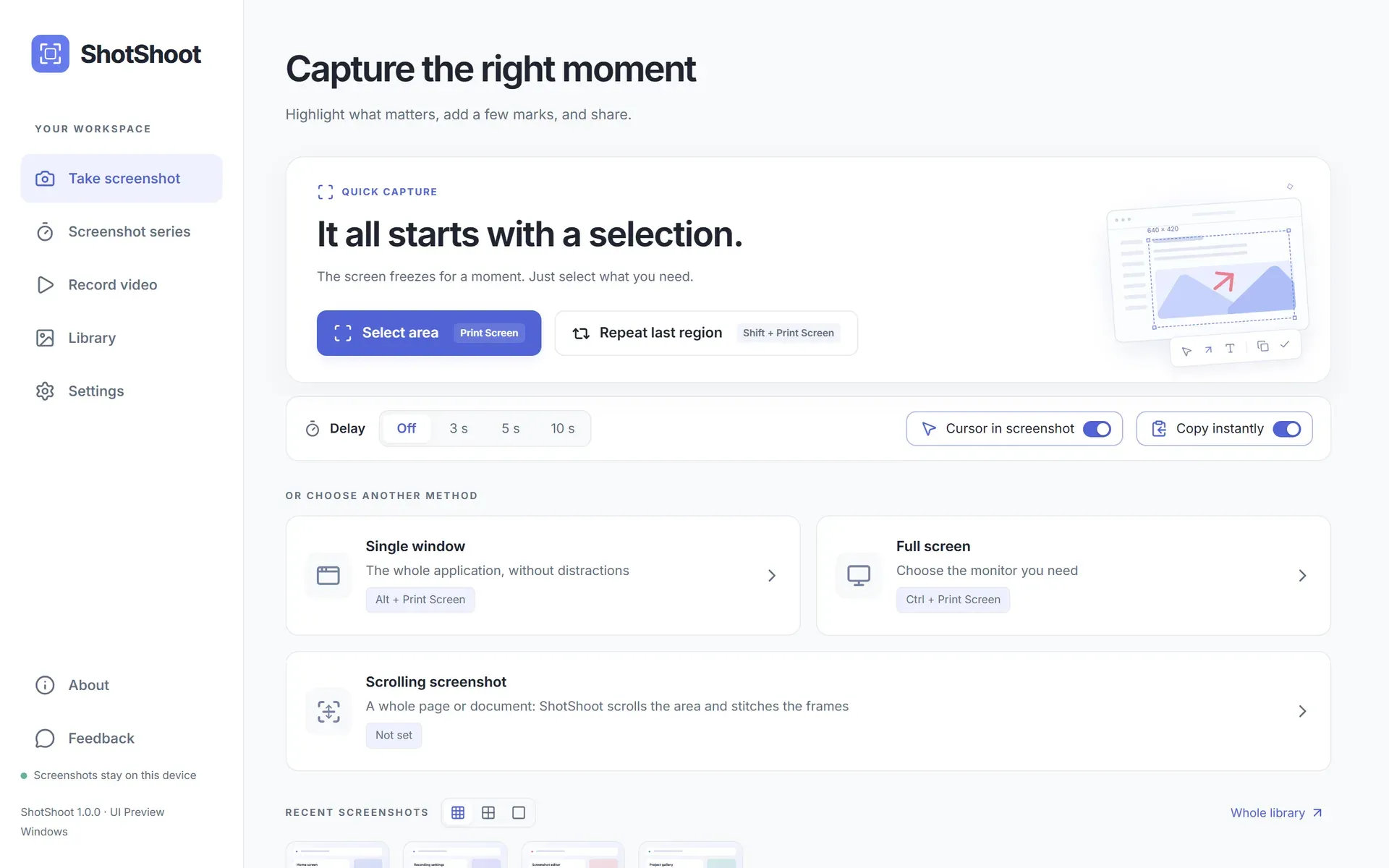
ShotShoot main window with capture modes and shortcutsShotShoot main window with capture modes and shortcuts
Stays on your device20 languagesPNG · JPEG · MP4Light and dark
One gesture instead of five apps

From screen to message in three moves

  1. 01

    Select exactly what matters

    Drag over a region, click a window or take the whole screen. Move the frame, pull any of eight handles, type an exact size or lock an aspect ratio.

  2. 02

    Explain it on the spot

    Arrows with adjustable heads, Bézier curves, text, pen, rectangles, ellipses and blur for private details — right on top of the screen, no separate editor window.

  3. 03

    Share without detours

    Copy, save as PNG or JPEG, or send it to Telegram or WhatsApp from the Share menu. Auto-copy puts every change straight into the clipboard.

Private data
Fix this button
1920 × 1200
Copied to clipboard
Everything in one window

Five tools that usually live in five different apps

Capture

Region, window or full screen

Separate shortcuts for each mode. The frame shows its size in pixels, snaps to exact dimensions and keeps panels out of the final image. On Windows every monitor gets its own editor with a shared history.

  • Exact width and height
  • Custom aspect ratios
  • Cursor on or off
Capture screen with region, window and full-screen modesCapture screen with region, window and full-screen modes
Editor

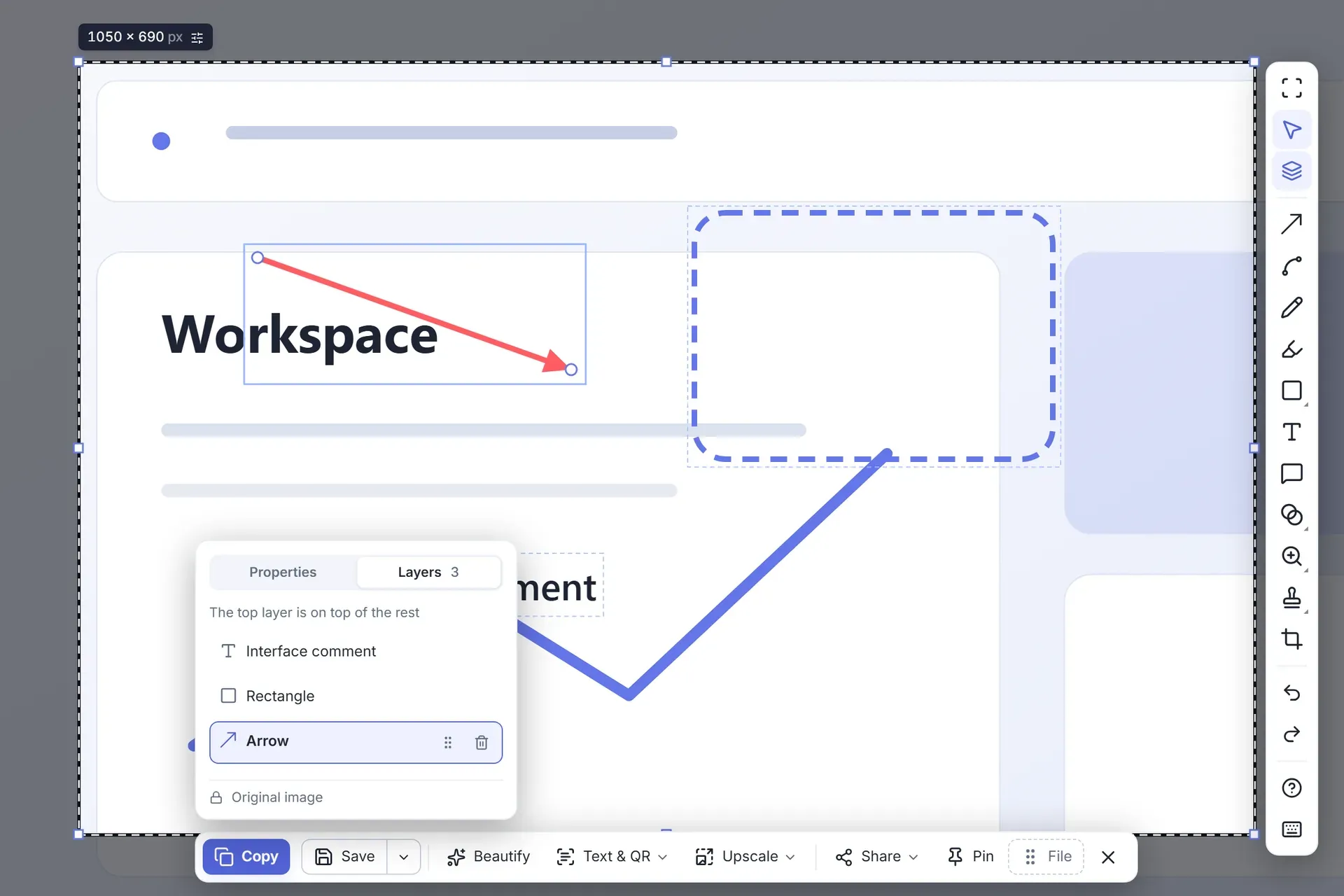
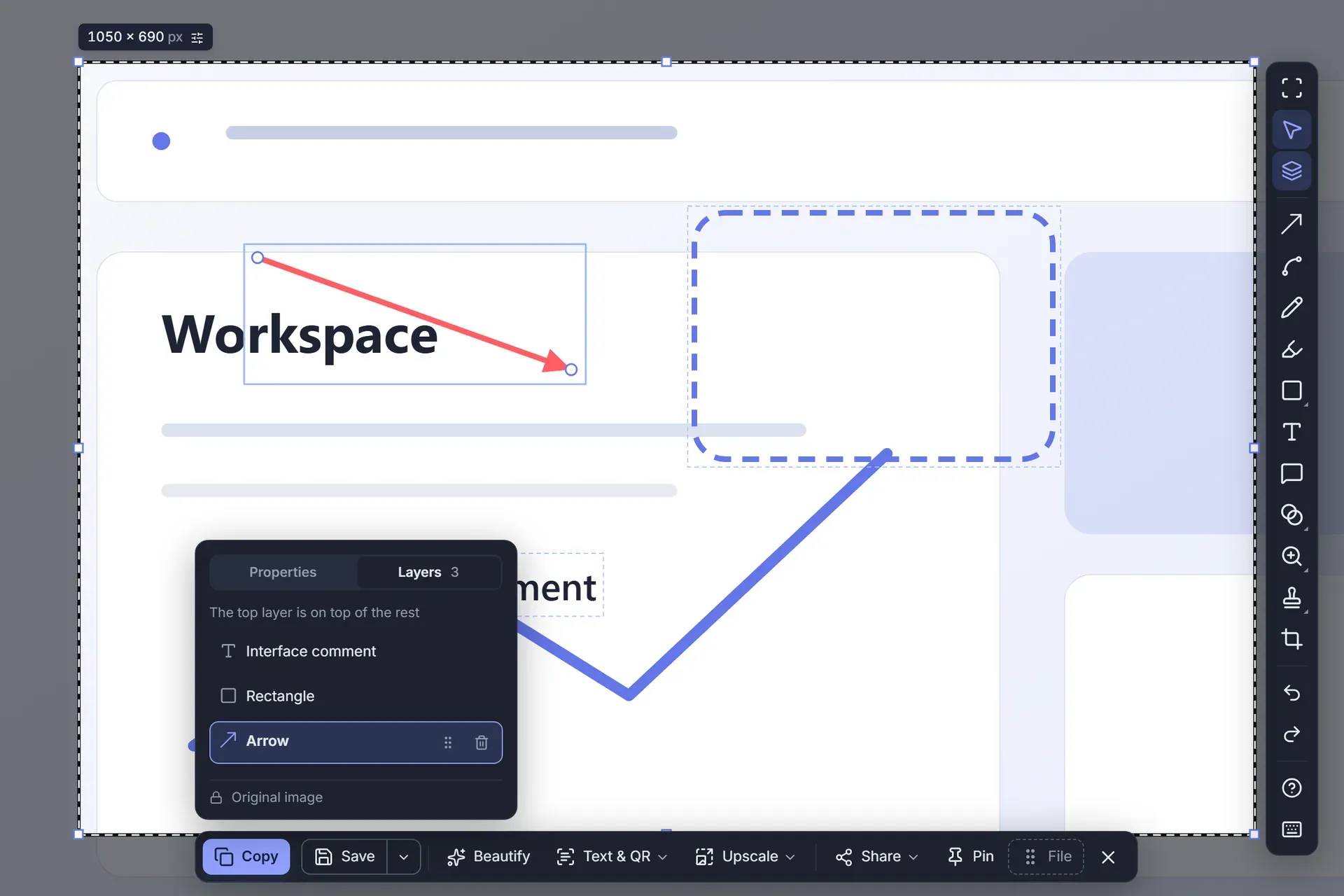
Layers you can rearrange

Every arrow, label, stamp and blur stays an editable object until export. Reorder layers by dragging, change color and thickness later, undo and redo anything. Snapping and guides keep things aligned.

  • 14 annotation tools
  • Blur, mosaic and spotlight
  • Full undo history
Editor with the layers panel openEditor with the layers panel open
Series

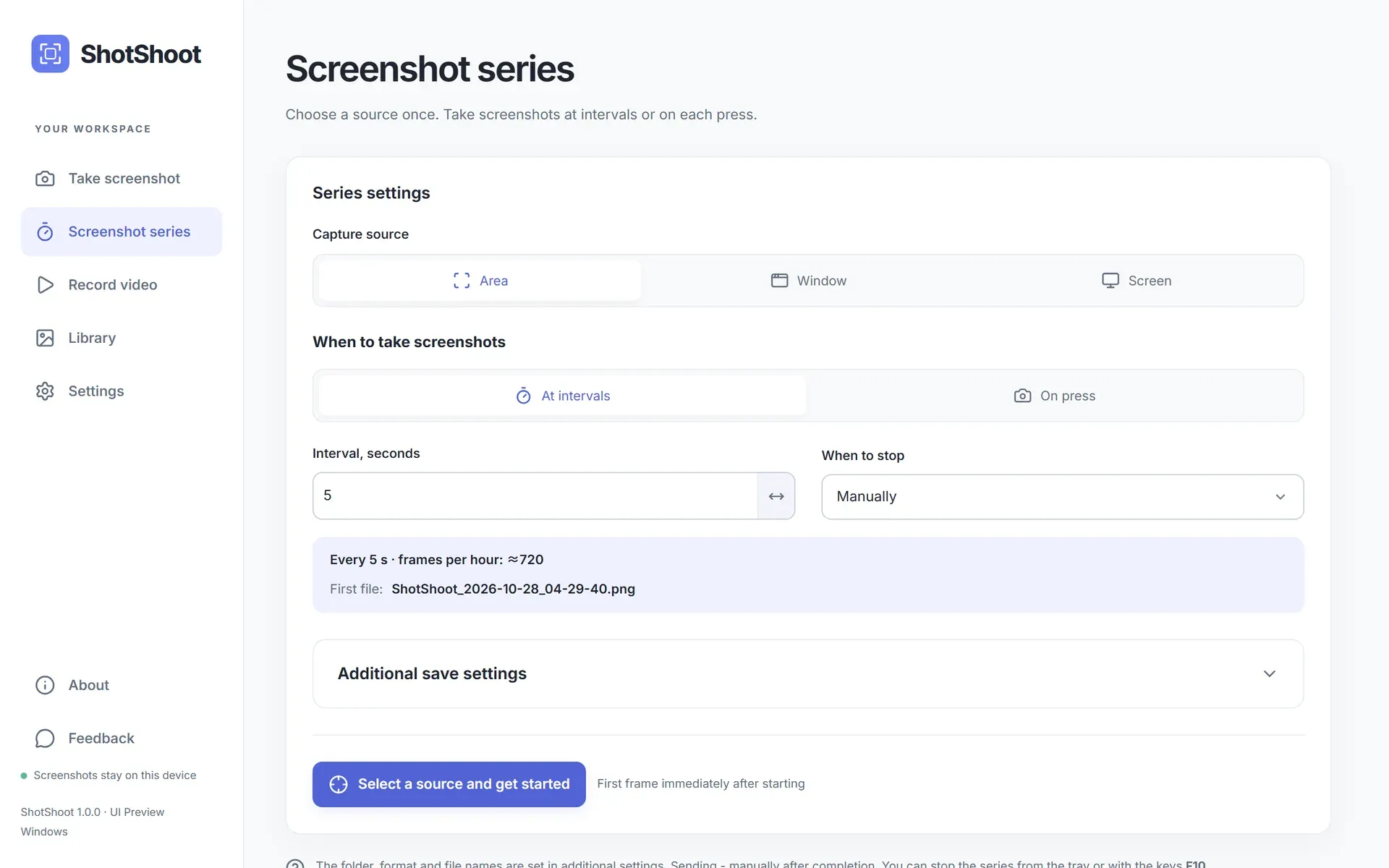
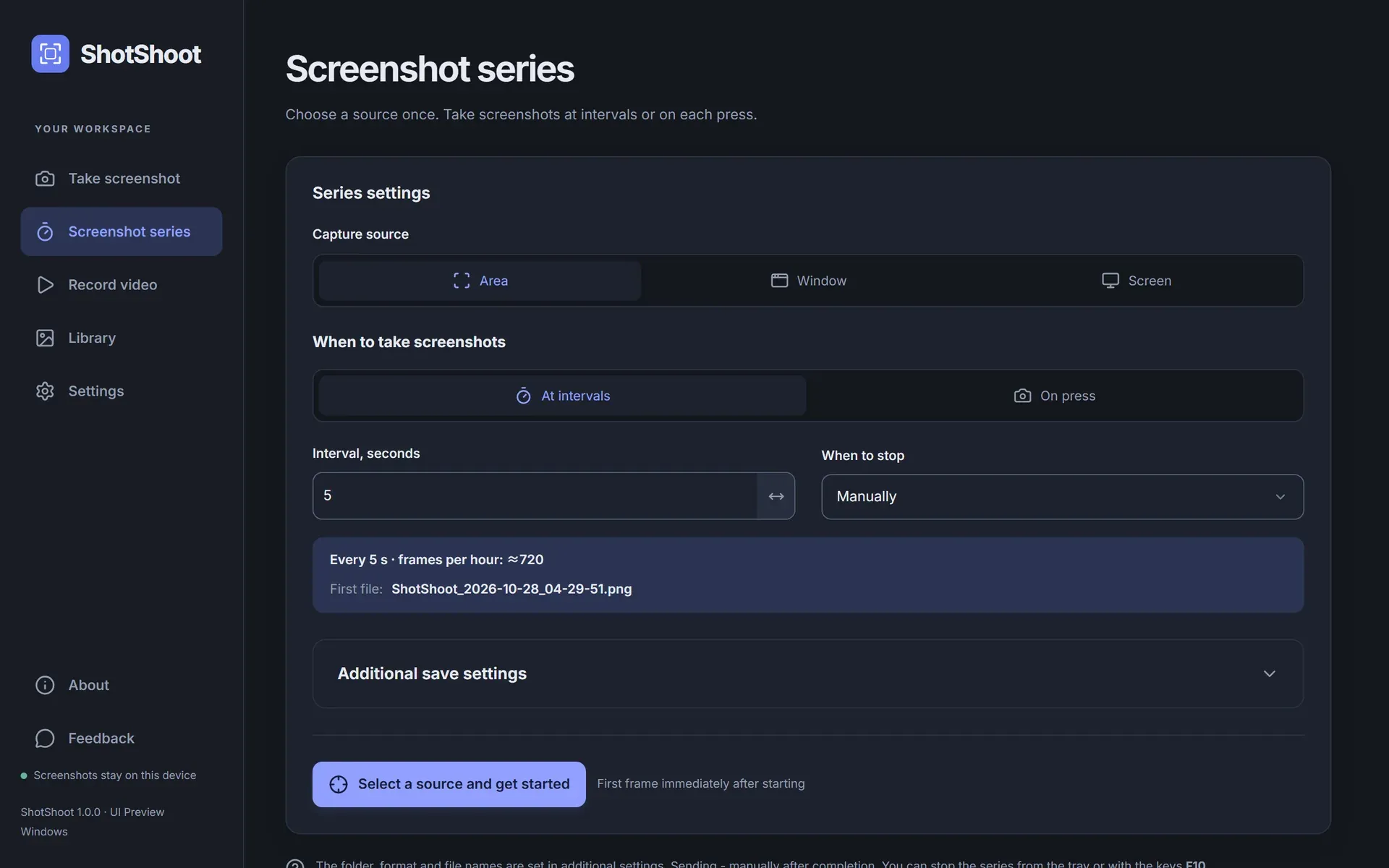
Screenshots on a timer

Capture a region, a specific window or a monitor every few seconds. Stop manually, after a number of frames or after a set time. Name files with a template like Frame-{n:4}-{date}.

  • Interval from 1 second
  • Pause and resume
  • Window followed when moved
Screenshot series settingsScreenshot series settings
Video

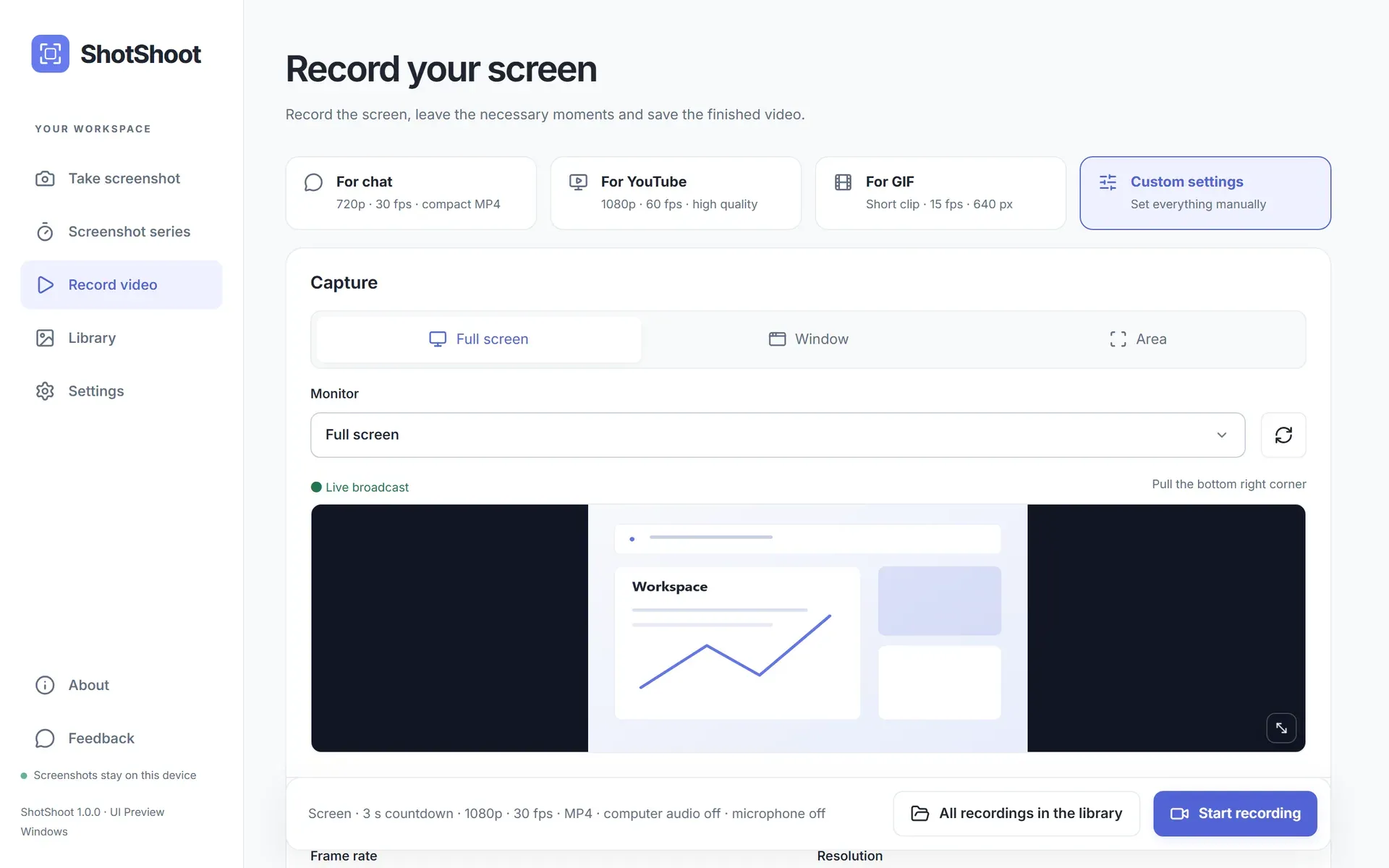
Screen recording with a built-in editor

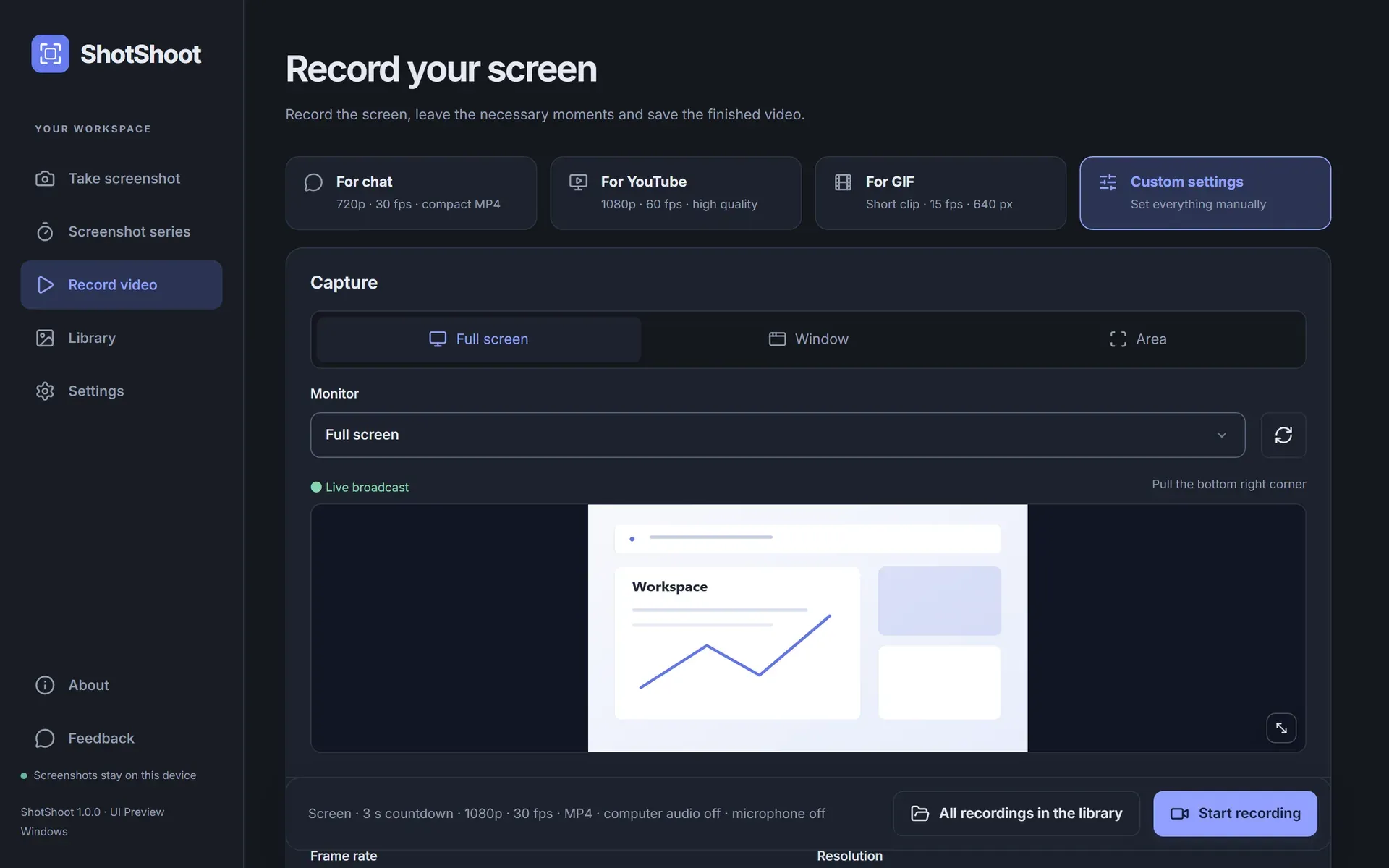
Record a screen, window or region with system audio, microphone and webcam. Highlight clicks, show keystrokes (Windows), trim, split and speed up fragments, then export to MP4, MOV, MKV, AVI, WebM, GIF or WebP.

  • 24 / 30 / 60 fps
  • Up to 2160p
  • Hardware encoding
Screen recording settingsScreen recording settings
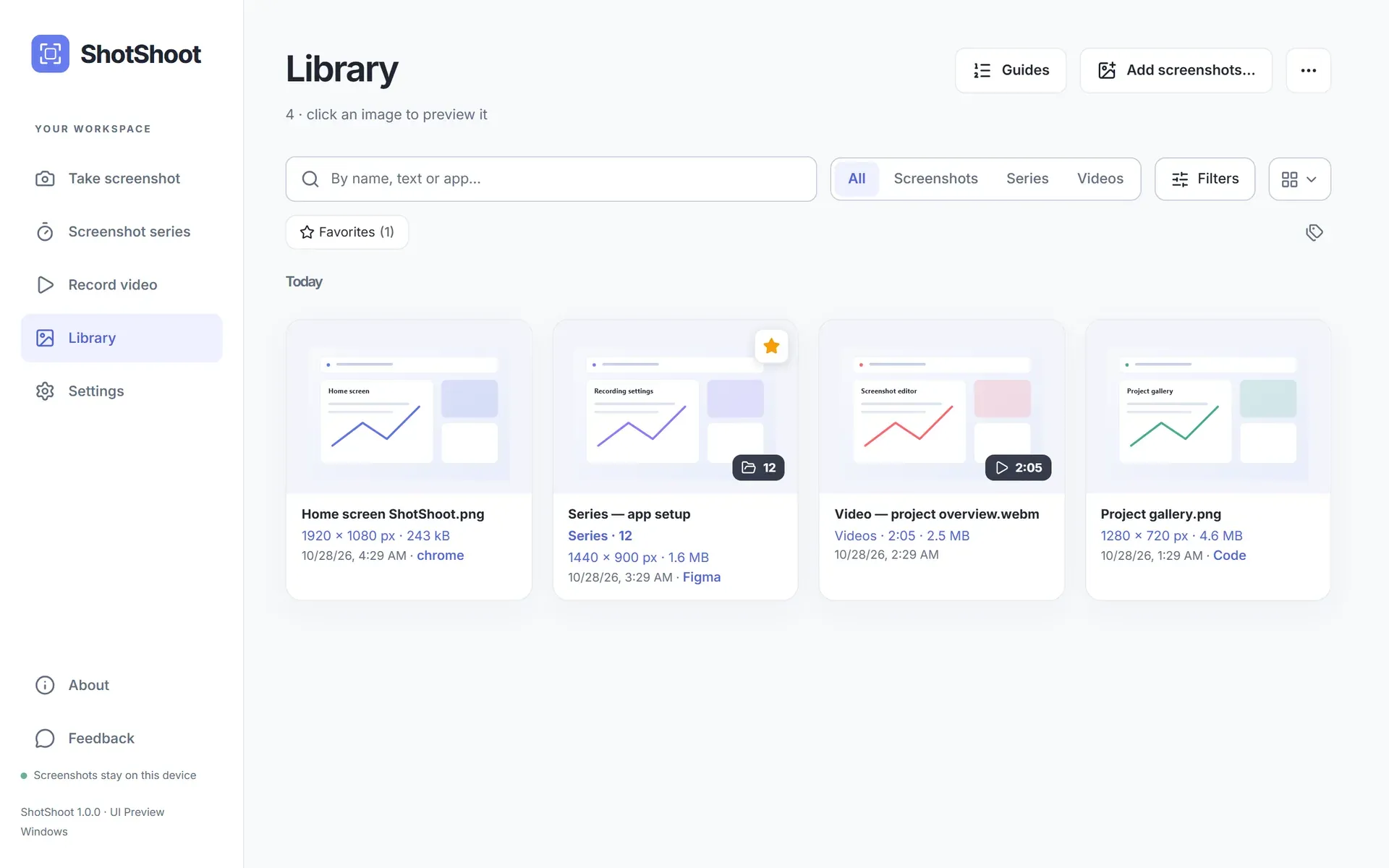
Library

Come back and edit later

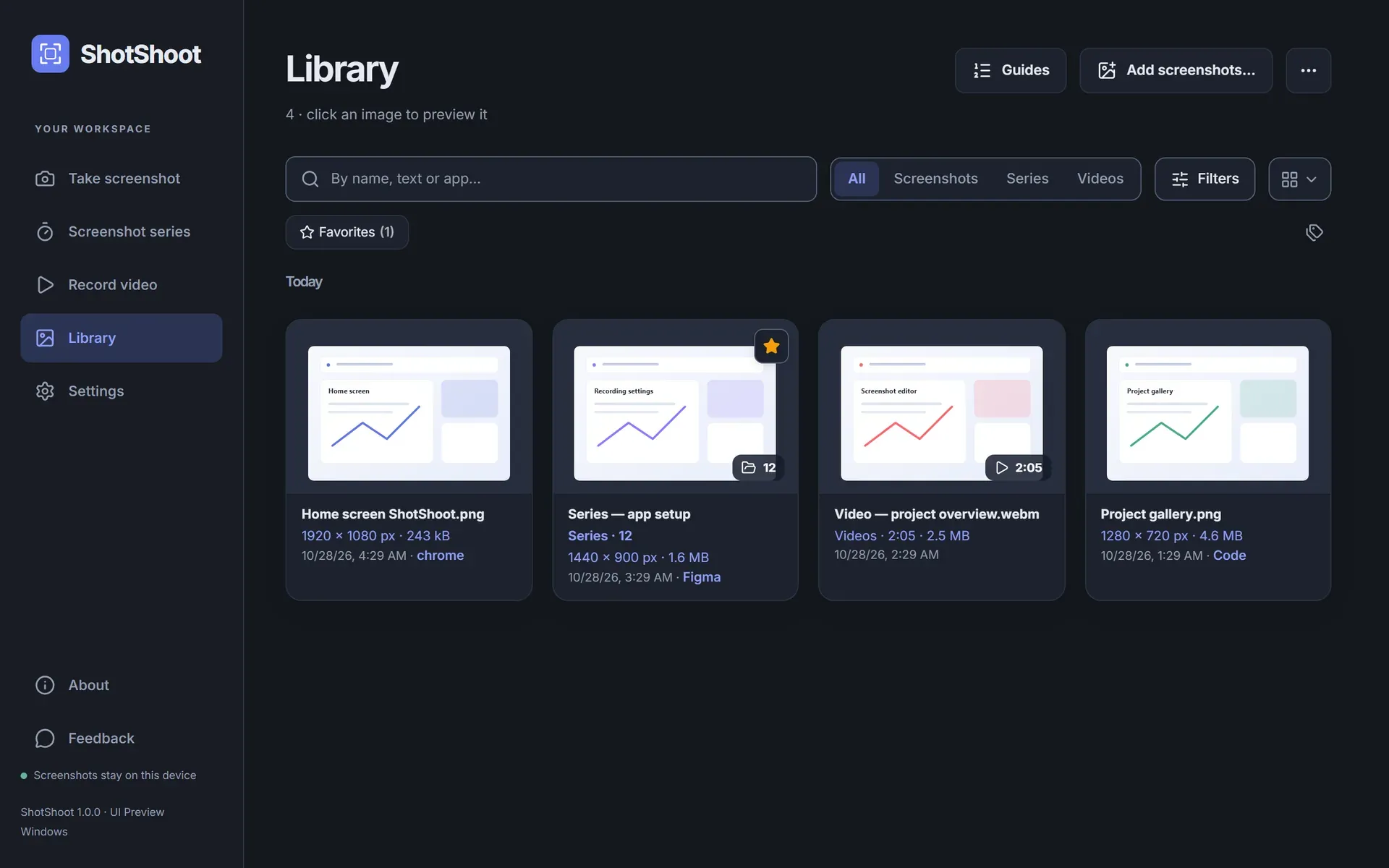
Screenshots, series and videos land in one local library. Find an image by the text inside it, reopen it, add new notes on top and save a new version — the original stays untouched.

  • Search by text in images
  • Favorites, filters and dates
  • Originals preserved
Library with saved screenshotsLibrary with saved screenshots
Beyond screenshots

More than a screenshot tool

Text recognition, AI upscaling, long pages and ready-made guides — and all of it runs on your computer.

BeforeAfter ×4
AI upscale

Enlarge ×2 or ×4 without the blur

A neural network sharpens small and blurry images right on your device. Compare before and after with the slider, then copy the result or keep it in the library.

OCR

Copy text from any screenshot

Text is recognized offline in 20 languages. Paste it anywhere — and find screenshots in the library by the words inside them.

Scrolling captureWindows · macOS

A whole page in one image

Scroll a long page, chat or document and ShotShoot stitches it into one tall screenshot.

Beautify

Ready for slides and posts

Padding, gradient or image backgrounds, rounded corners, a shadow and a window frame. Social aspect ratios in one click.

Guides

Step-by-step instructions

Turn a few screenshots into a numbered guide with a title and notes, then export it in one click.

Pin

Keep a screenshot on top

Pin a capture above all windows to compare or retype from it. A quick card after each capture lets you copy it, open it in the editor, pin it, show it in the folder or drag it into another app.

Editor

A tool for every note

Mosaic, spotlight, magnifier, icon stamps, step numbering, callouts, marker, color picker and image insert.

Video

Recordings that explain themselves

Webcam overlay, on-screen keystrokes (Windows) and automatic zoom on clicks. Change fragment speed, export to GIF or WebP and use hardware encoding.

Capture

Faster everyday capture

A 3 / 5 / 10 s timer, repeat the last region, instant copy or save, file name templates and shotshoot:// links for automation.

Series

Set the interval. Get back to work.

The first frame is taken instantly, the next ones follow on schedule. Sleep, screen lock or a closed window pause the series with a clear message — no silent gaps.

8%
Frame-0001.png
17%
Frame-0002.png
25%
Frame-0003.png
33%
Frame-0004.png
42%
Frame-0005.png
50%
Frame-0006.png
58%
Frame-0007.png
67%
Frame-0008.png
75%
Frame-0009.png
83%
Frame-0010.png
92%
Frame-0011.png
100%
Frame-0012.png
Video

Clicks your viewers can actually see

Choose a wave, double ring, sparks or flash — the effect is drawn straight into the frames, with a separate color for right clicks. A floating mini-panel handles the countdown, pause and stop.

  • System audio, microphone and webcam
  • Keystrokes (Windows) and zoom on clicks
  • Trim, split, change speed
  • Up to 200 Mbit/s, hardware encoding
REC 00:00Click anywhere in the frame
Privacy

Your screenshots never leave your computer

Images, videos and the library are stored in your own folders. Text recognition and AI upscaling run on your device. Nothing is uploaded to a cloud unless you connect your own storage.

Never sent anywhere

  • Images
  • Video
  • Audio
  • Clipboard
  • Text and annotations
  • Window titles
  • File names and paths
Compare

Why not the built-in tool or a cloud service?

CompareShotShootBuilt-in OS toolCloud screenshot service
Region, window and full-screen captureYesYesYes
Arrows, curves, text and blur on the spotYesPartly or depends on the productYes
Objects stay editable after captureYesNoPartly or depends on the product
Text recognition (OCR) on the deviceYesPartly or depends on the productPartly or depends on the product
AI upscaling without uploadingYesNoNo
Scrolling screenshotsYesNoPartly or depends on the product
Timed screenshot seriesYesNoNo
Screen recording with click effects and trimmingYesPartly or depends on the productPartly or depends on the product
Files stay on your computerYesYesNo
Works without an online accountYesYesNo
Interface in 20 languagesYesYesPartly or depends on the product
YesPartly or depends on the productNo

Typical capabilities of each product category. Individual products may differ.

Made for everyday work, in your language

20interface languages
14annotation tools
8video formats
0uploads to the cloud
Download

Ready when you are

ShotShoot is now available in Microsoft Store. The Mac App Store version is coming soon, followed by Linux. A 15-day trial lets you try every feature before you buy.

Get it fromMicrosoft StoreDownload on theMac App StoreComing soonVersion forLinuxComing soon
Requirements
Windows 10 / 11 (x64)
macOS 14 Sonoma+
FAQ

Questions and answers

Support
Does ShotShoot upload my screenshots?

No. Images, videos and the library stay on your computer. The app only contacts the license server to activate and verify your license and to send limited usage statistics without any content.

Do text recognition and AI upscaling send my images anywhere?

No. Both run locally with models that ship with the app, so they work offline and your images never leave the computer.

Can I upload screenshots to my own server?

Yes, if you want to. In the settings you can connect WebDAV, S3-compatible storage or your own HTTP endpoint. It is off by default, and files go only to the address you enter.

Does it work offline?

Yes. Capturing, editing and the library work offline. The app only needs a short connection now and then to confirm the license: store versions check with Microsoft Store or the Mac App Store, and a key bought from us works offline for up to 48 hours at a time.

Which systems are supported?

Windows 10 / 11 (x64) and macOS 14 Sonoma+. A Linux version is coming soon.

Can I change the shortcuts?

Yes. Region, window, full screen, repeat last region, capture to clipboard, scrolling screenshot and stopping a series or recording each have their own shortcut, and conflicts are detected before saving. By default, region capture uses Print Screen on Windows and ⌘ + Shift + 0 on macOS.

Which languages are available?

20 languages. By default ShotShoot follows your system language, and you can switch it in the settings at any time.

Can I move my license to a new computer?

A store purchase belongs to your Microsoft or Apple account, so just install ShotShoot on the new computer from the store. A key bought from us works on one device at a time: contact support to transfer it, and the previous device is unbound.

How do I send a screenshot to Telegram?

Open Share → Telegram. On Windows ShotShoot hands the file to Telegram Desktop so you can pick a chat; on macOS it opens the system Share menu. For WhatsApp the image is copied and saved so you can paste it into a chat.

Contact

Still have a question?

Write to us and a real person will answer, usually within two business days.

support@shotshoot.app

We use your address only to answer you. Privacy policy